macFUSE is a software package that brings support for FUSE file systems to macOS. FUSE file systems are regular applications that run in user space as opposed to kernel extensions. There are many third party products that rely on macFUSE to provide file system integration.
macFUSE enables developing file systems for many use cases, including but not limited to:
- File system integrating of cloud storage services
- Transparent encryption and decryption of files
- Accessing volumes whose format is not supported by macOS
- App-specific virtual volumes
Download the latest version of macFUSE from [https://macfuse.io](https://macfuse.io/) or [https://github.com/macfuse/macfuse/releases](https://github.com/macfuse/macfuse/releases), then double click the downloaded file and run the installer.
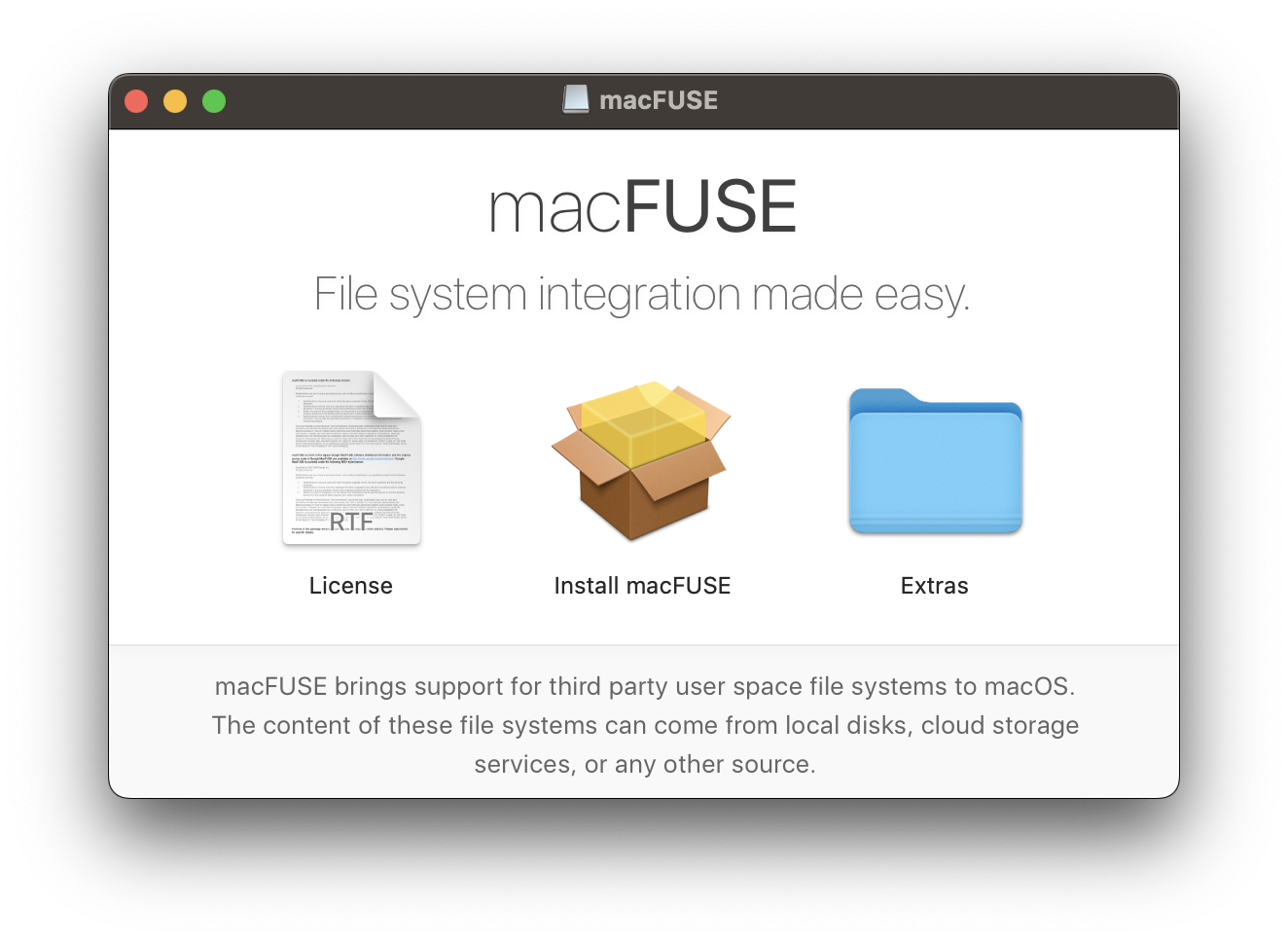
Please note: Although it is possible to install macFUSE using a package manager it is recommended to download the latest release from the macFUSE website instead. The macFUSE packages available through package managers are not managed by the macFUSE developers.
macFUSE provides two backends for mounting volumes:
- [FSKit Backend](https://github.com/macfuse/macfuse/wiki/#fskit-backend)
- [Kernel Backend](https://github.com/macfuse/macfuse/wiki/#kernel-backend)
For more information, see [FUSE Backends](https://github.com/macfuse/macfuse/wiki/FUSE-Backends).
### FSKit Backend
This new backend runs entirely in user space and is based on the new `FSKit` API (available in macOS 15.4 and later). It does not require a kernel extension or any security configuration changes in Recovery Mode.
### Kernel Backend
This backend relies on a kernel extension to bridges the gap between user space file systems and the macOS kernel. It offers the best performance and full feature support but requires enabling support for third-party kernel extensions in Recovery Mode.
Enabling support for third party kernel extensions is only needed when using macFUSE for the first time on an Apple Silicon Mac. In case you already enabled support for third party kernel extensions, continue with [Allow the macFUSE kernel extension to load](https://github.com/macfuse/macfuse/wiki/#allow-the-macfuse-kernel-extension-to-load-apple-silicon-and-intel-macs).
macOS 13 and later
> On Apple Silicon Macs the following prompt will be displayed when trying to load a kernel extension for the first time.
>
> 
>
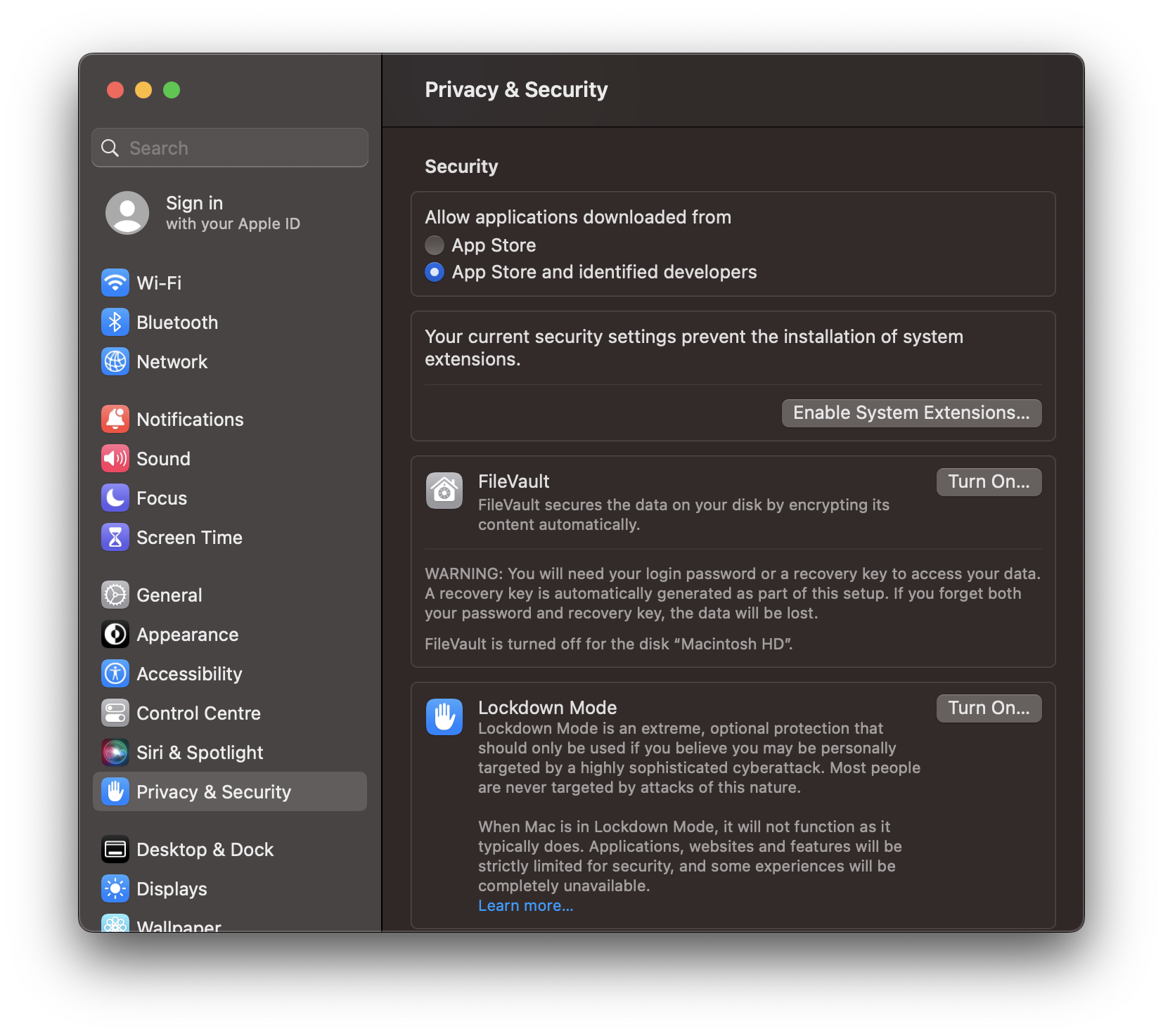
> Click on the "Open System Settings" button. This will open the Privacy & Security settings.
>
> 
>
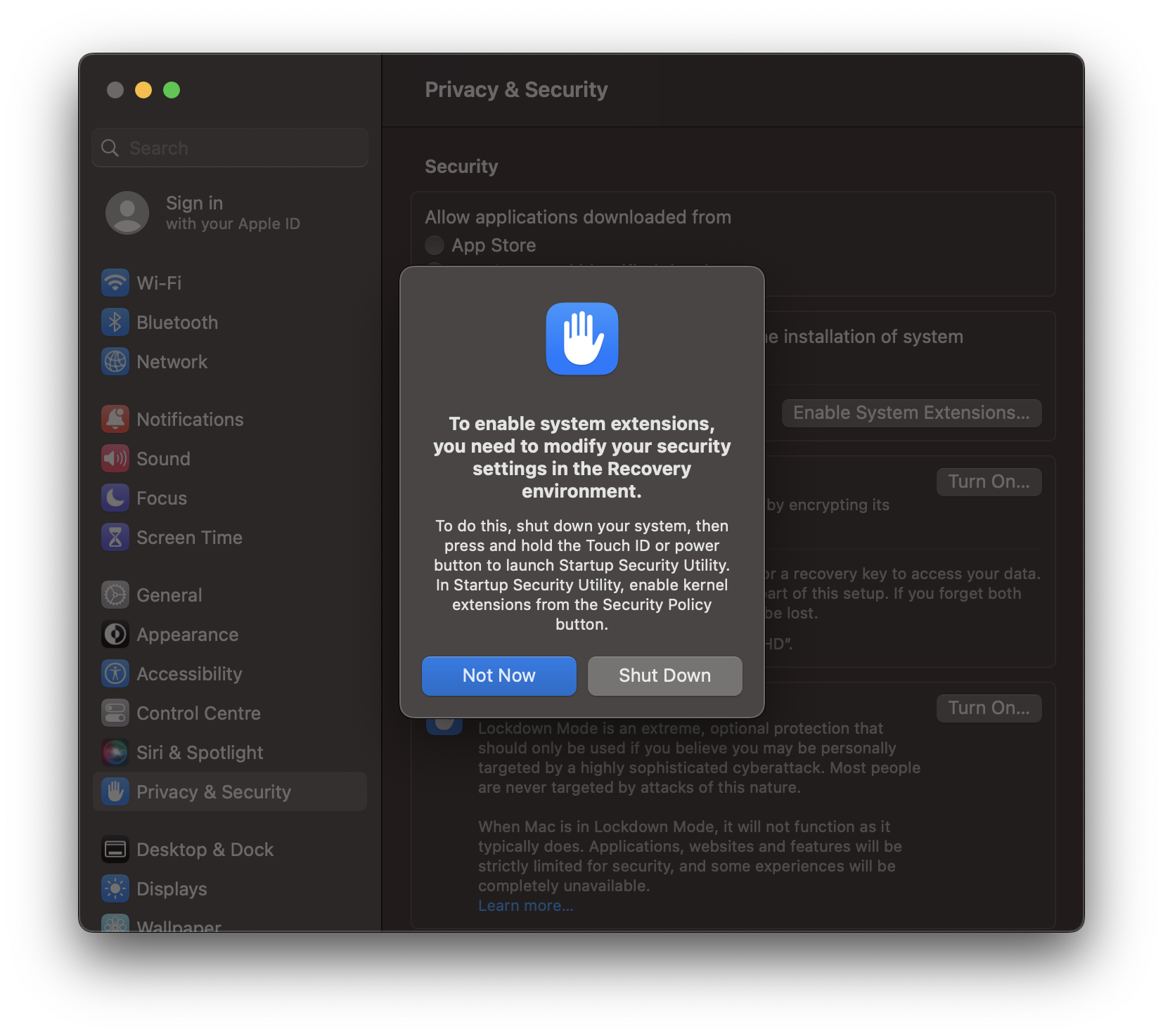
> By default, third-party kernel extensions are disabled on Apple Silicon Macs. Click on the "Enable System Extensions…" button and enter your login password when prompted.
>
> 
>
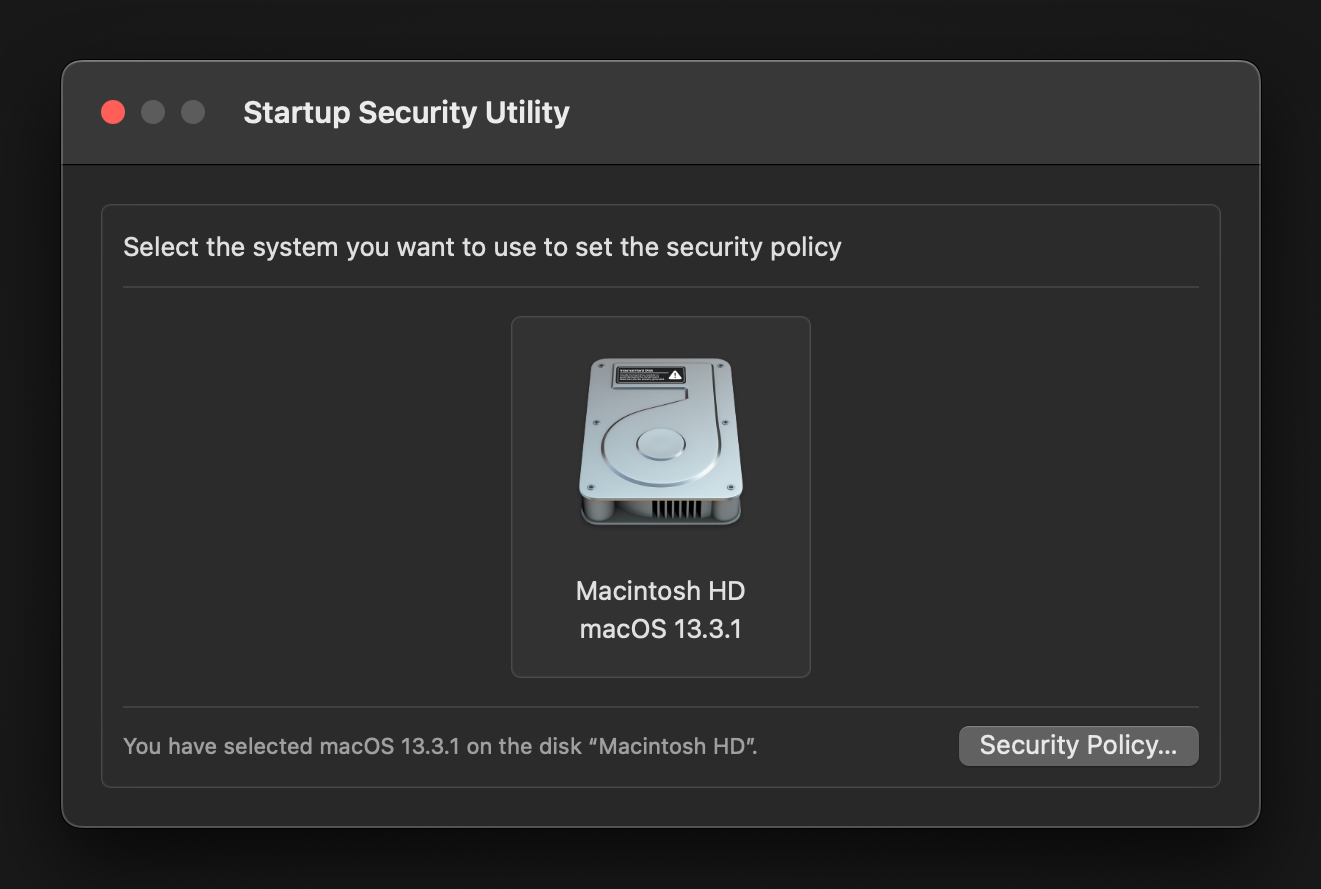
> Click on "Shut Down". After your Mac has shut down, press and hold the Touch ID or power button of your Mac to start the Recovery environment and launch Startup Security Utility.
>
>
> 
>
>
> Select the macOS volume you want to update the security policies for. Usually there is only one volume. Then click on the "Security Policy…" button.
>
>
> 
>
>
> Select "Reduced Security" and enable "Allow user management of kernel extensions from identified developers". Then click on "OK", enter your login password when prompted and restart your Mac.
macOS 12 and earlier
> On Apple Silicon Macs the following prompt will be displayed when trying to load a kernel extension for the first time.
>
> 
>
> Click on the "Open Security Preferences" button. This will open the Security & Privacy system preferences.
>
> 
>
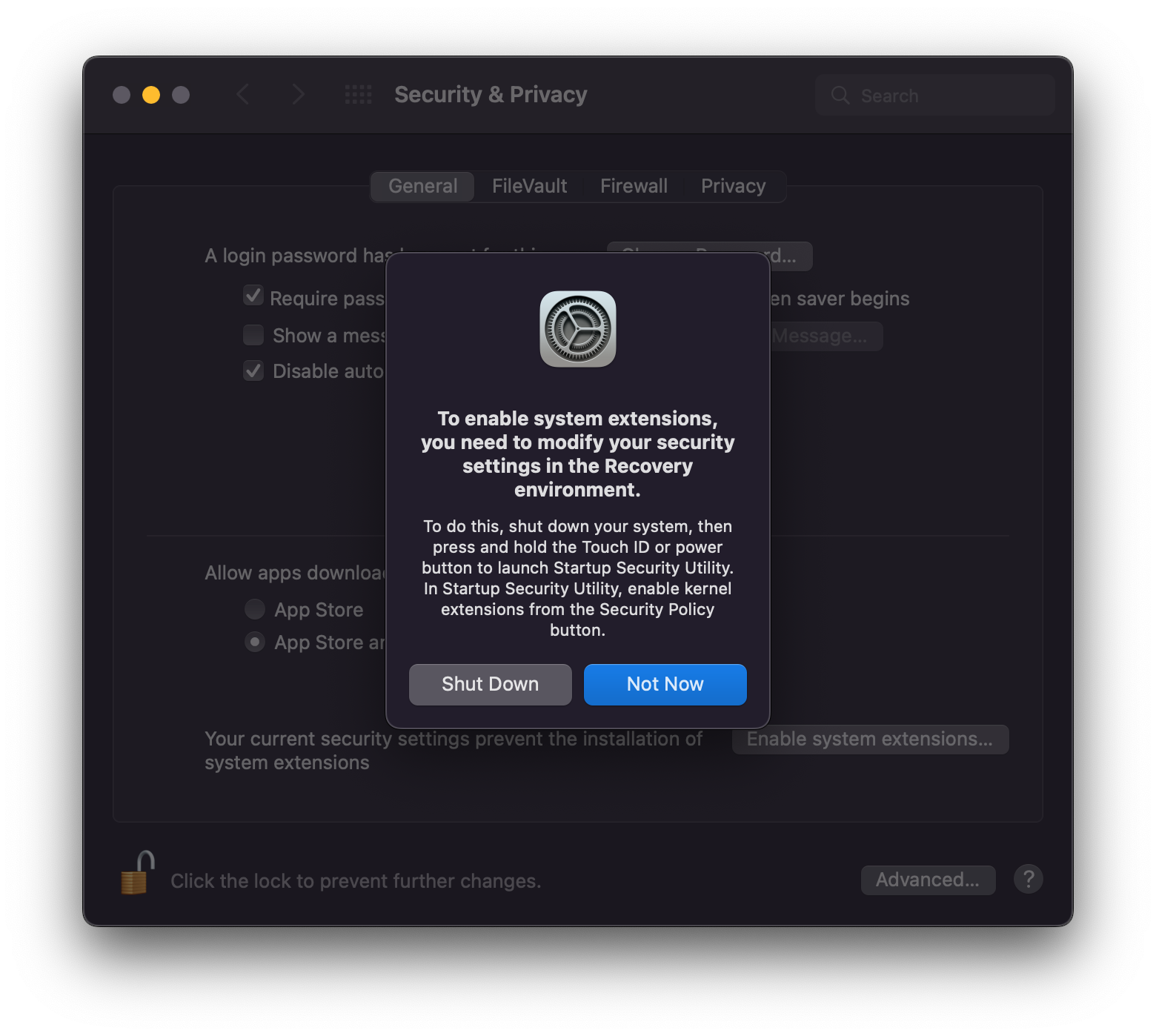
> By default, third-party kernel extensions are disabled on Apple Silicon Macs. Click on the lock in the lower left corner of the window and enter your login password. Then click on the "Enable system extensions…" button.
>
> 
>
> Click on "Shut Down". After your Mac has shut down, press and hold the Touch ID or power button of your Mac to start the Recovery environment and launch Startup Security Utility.
>
>
> 
>
>
> Select the macOS volume you want to update the security policies for. Usually there is only one volume. Then click on the "Security Policy…" button.
>
>
> 
>
>
> Select "Reduced Security" and enable "Allow user management of kernel extensions from identified developers". Then click on "OK", enter your login password when prompted and restart your Mac.
macOS 13 and later
> On Apple Silicon and Intel Macs the following prompt will be displayed when trying to use macFUSE for the first time or after after installing a macFUSE update.
>
> 
>
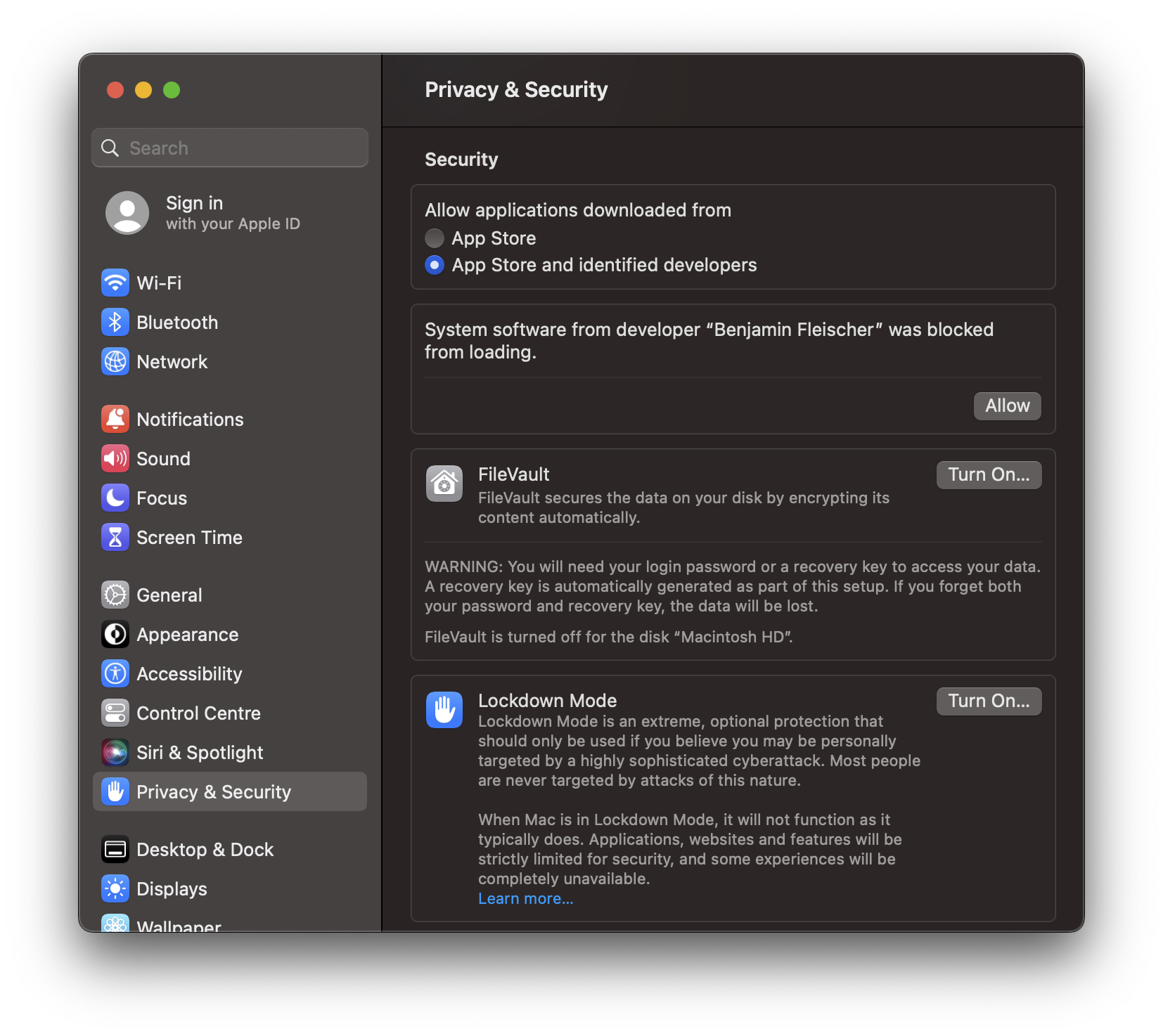
> Click on "Open System Settings".
>
> 
>
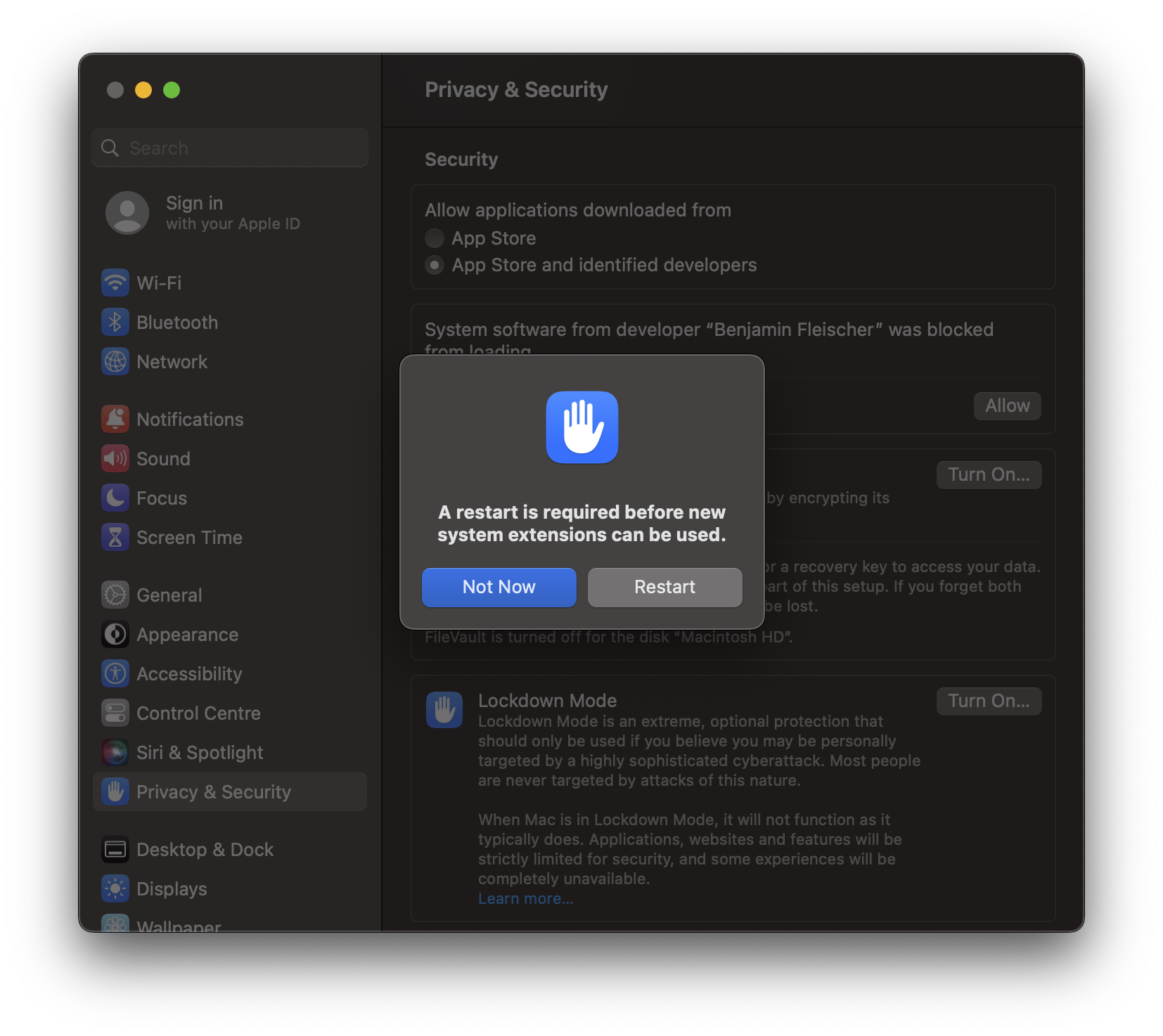
> Click on the "Allow" button. You will be asked for your login password.
>
> 
>
> After restarting your Mac you can use macFUSE.
macOS 12 and earlier
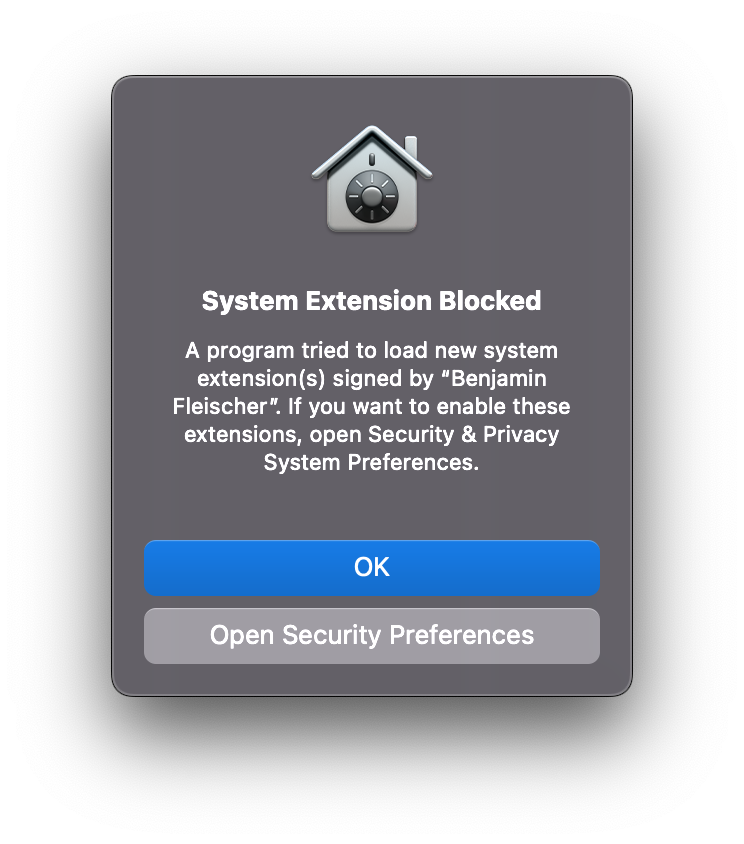
> On Apple Silicon and Intel Macs the following prompt will be displayed when trying to use macFUSE for the first time or after after installing a macFUSE update.
>
> 
>
> Click on "Open Security Preferences".
>
> 
>
> Click on the lock in the lower left corner of the window and enter your login password. Then click on the "Allow" button.
>
> 
>
> After restarting your Mac you can use macFUSE.
## Troubleshooting Guide
- Make sure to install all available updates for your macOS release and use the latest version of macFUSE.
- In case there is no "Allow" button after following the above steps, trying to load the macFUSE kernel extension manually might help. Run the following command in Terminal:
```
/usr/bin/sudo /usr/bin/kmutil load -p /Library/Filesystems/macfuse.fs/Contents/Extensions/15/macfuse.kext
```
Replace the "15" in the above command with the major version number of the current macOS release you are running. You will need to enter your login password, when prompted, for this to work. Please note, your user account needs administrative permissions.
- In case you are prompted to allow loading the macFUSE kernel extension again and again even though you clicked the "Allow" button and restarted your Mac when prompted to, you are most likely running into a macOS bug.
The macFUSE file system bundle contains several kernel extensions to support a wide range of macOS releases. In rare cases macOS picks the wrong extension. As a workaround you can strip the unused extensions from the macFUSE file system bundle by running the following command in Terminal.
```
/bin/bash <(curl -Ls https://gist.github.com/bfleischer/46dde8226a47f218b4d4eb8a51c50136/raw)
```
Please note, your user account needs administrative permissions and you will be prompted to enter your login password. Then try mounting the volume again and follow the instructions above.
- In case you are unable to access the "Startup Security Utility" in recovery mode, try the following steps:
- Shut down your Mac
- Press and hold the power button to access startup settings
- Select on "Options" to start in recovery mode
- Click on the Apple logo in the menu bar and select "Startup Disk". Then select the volume containing macOS and restart your Mac.
- Start in recovery mode again. You should now be able to access "Startup Security Utility".
- Recent versions of macOS do not support loading third-party kernel extensions when booting from external volumes. There is no known workaround. This is a limitation of macOS, not macFUSE.
- Recent versions of macOS do not support loading third-party kernel extensions when being running in a virtual machine. There is no known workaround. This is a limitation of macOS, not macFUSE.
- There are documented cases where third-party kernel extensions, that are not compatible with the currently running version of macOS, result in macOS refusing to load compatible third-party kernel extensions, including macFUSE. Prominent examples are (not conclusive):
- Legacy BlackBerry USB Driver (`/System/Library/Extensions/com.rim.driver.BlackBerryUSBDriverInt.kext`)
- Legacy versions of OpenZFS (`Library/Extensions/spl.kext`).
- Report the issue to Apple. You can use Apple's Feedback Assistent app to do so. Use Spotlight to open it or navigate to `/System/Library/CoreServices/Applications` in Finder.
## Notes
macFUSE does not require you to disable Gatekeeper or System Integrity Protection. All official macFUSE releases are digitally signed and approved by Apple's Notary Service. This means macFUSE is compatible with Gatekeeper and System Integrity Protection.